How to set up AVE’s on-device analysis.
Prepare Visual Understanding and Transcription so AVE can search scenes, understand speech, and use your footage as edit context on your Mac.
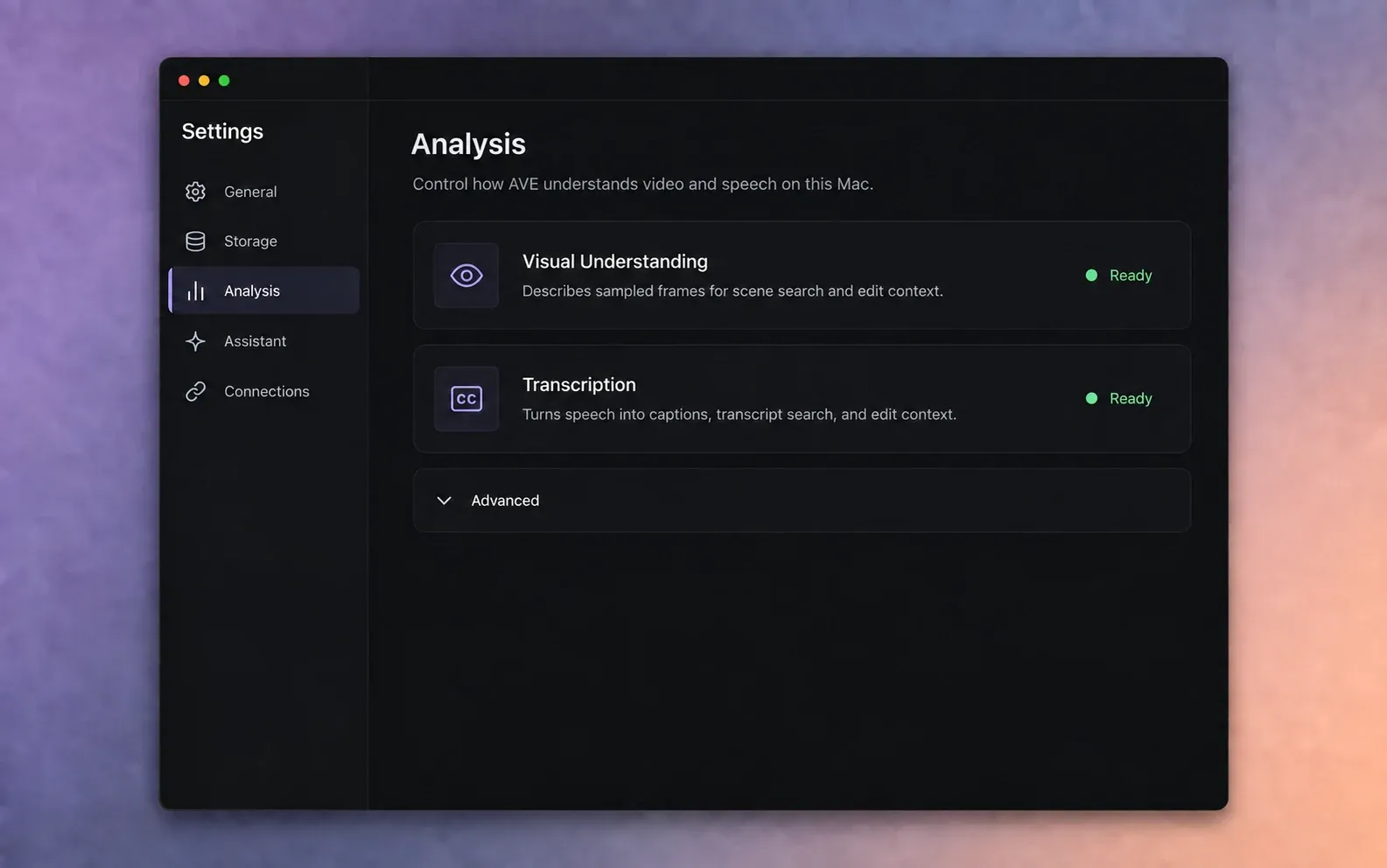
Understand the two analysis capabilities.
AVE uses two separate on-device capabilities to understand media. Set up both if you want the broadest search and editing context.
- Visual Understanding describes sampled video frames. It helps AVE search for scenes, objects, actions, settings, and other visible details.
- Transcription turns speech into timed words. It supports transcript editing, caption creation, quote search, and speech-aware edit context.
Visual Understanding applies to video. Transcription applies to video or audio with speech. Graphics do not need transcription.
Analysis stays on your Mac. The included analysis tools process your media locally. An optional cloud assistant can receive compact text context when you choose to use it, but AVE does not upload source footage to that assistant.
Open Analysis settings.
- Open AVE and choose the Settings control.
- Select Analysis in the settings sidebar.
- Check the status shown beside Visual Understanding and Transcription.
A green Ready status means the selected capability has the engine and model it needs. If AVE shows setup or download actions, complete those before analyzing a large batch of footage.
Set up Visual Understanding.
- Open the Visual Understanding card.
- Choose the recommended model if this is your first setup. You can change models later.
- Download the model if AVE reports that it is not installed.
- Wait until the card reports Ready.
Model downloads need an internet connection. Once installed, normal visual analysis runs on your Mac. A larger quality model may take more storage and memory, so begin with the recommended option unless you already know you need another model.
Set up Transcription.
- Open the Transcription card.
- Keep transcription enabled and choose the recommended model.
- Download any missing model or runtime AVE requests.
- Wait for the card to report Ready.
Transcription needs audible speech. A silent clip, music-only clip, image, or graphic will not produce a useful transcript. You can still run Visual Understanding on eligible video.
Verify the setup before importing a large library.
Test with one short video you know well. Both enabled capabilities should report Ready in Settings before you start.
- Import the short test clip into a project.
- Analyze it from Assets.
- Open its transcript if it contains speech.
- Search for one visible detail and one spoken phrase you know are present.
This small check separates a setup problem from a problem specific to one source file.
Analyze your real footage.
Setting up the models does not analyze every existing clip automatically. Select the footage you want AVE to understand, then run Analyze. Follow the import and analysis guide for the complete workflow.
Analysis time depends on clip duration, the selected models, and your Mac. Start with the media needed for the current edit instead of waiting for an entire archive.
If Analysis does not become ready.
The included engine is unavailable
Choose Check again. If AVE still cannot find or start the included engine, quit AVE, reopen it from Applications, and check again. Reinstall the current AVE build if the included files remain unavailable.
A model download is incomplete
Check the internet connection and available disk space, then retry the download from the relevant capability card. Do not move downloaded model folders manually unless you are using the controls under Advanced.
The capability is ready but a clip fails
Try one short MP4 or MOV file. Confirm that the source is still available and readable. If only one file fails, the issue may be its format or media state rather than the analysis setup.
For a systematic diagnosis, use the analysis and connection troubleshooting guide. If the problem remains, send your AVE version, macOS version, exact status, and support report to support@tinythings.app.