How to troubleshoot AVE analysis and assistant connections.
Diagnose analysis that will not start, footage that is still processing, a CLI that AVE cannot find, or an MCP client that is waiting for AVE.
Identify which path is failing.
AVE has three related but separate systems. Start with the one whose status or action is failing.
- On-device analysis uses Visual Understanding and Transcription to create local footage context.
- Installed assistants use Codex CLI, Claude CLI, or Qwen CLI from inside the AVE composer.
- External MCP connections let Codex CLI or Claude Code work with AVE from the external client.
Qwen CLI belongs to the installed-assistant path. It will not appear as an external MCP connection in AVE 1.2.2.
Analysis is not ready.
- Open Settings > Analysis.
- Check Visual Understanding and Transcription separately.
- Complete any requested model or runtime download.
- Choose Check again after fixing the setup.
- Test one short, known MP4 or MOV before retrying a batch.
If AVE cannot find or read the included engine, quit and reopen the installed app. Reinstall the current AVE build if the included engine remains unavailable.
Footage is queued or still processing.
Check the status bar for the active asset and the number waiting. A batch runs as a queue, and long sources can take several minutes.
- Keep AVE open while the requested analysis is active.
- Keep source files connected and readable.
- Do not submit the same asset repeatedly while it is already analyzing.
- If the queue is idle, verify the model status in Analysis settings and retry one asset.
Search cannot find the moment you expect.
First confirm that the relevant analysis finished. Then match the query to the available evidence:
- Use exact spoken language or a close paraphrase for transcript search.
- Use objects, actions, locations, framing, or visible details for visual search.
- Preview each candidate before using it in an edit.
Analysis provides evidence-backed candidates, not guaranteed identity. If a recurring person, product, or place matters, review and save the exact source moment with Footage Memory.
An installed CLI is not found or not signed in.
- Run the CLI directly in Terminal under the same macOS user.
- Complete the CLI’s own sign-in flow.
- Open Settings > Assistant in AVE.
- Choose Check sign-in.
- Restart AVE if the CLI was installed while AVE was open.
Not found means AVE cannot locate the executable. Sign-in required means it found the executable but the provider needs account setup. Ready means AVE verified both.
MCP is waiting, disconnected, or needs an update.
Open Settings > Connections and read the status for that exact client.
- Restart required: fully quit and reopen Codex or Claude Code so it loads the connection.
- Waiting for assistant: the configuration exists, but a live client has not connected yet.
- Disconnected: re-enable the client, then restart it to read the rotated credential.
- Update connection: let AVE refresh the client configuration, then restart the client.
The AVE bridge is local to the same Mac. It is not a public endpoint, a cloud ChatGPT connection, or a Claude Desktop connector.
An MCP action is blocked.
Expand the client’s access settings and confirm that the requested action has a matching scope. Reading a project, importing media, proposing edits, applying edits, managing Footage Memory, and exporting are separate permissions.
If AVE asks for approval, review the project, sequence, sources, and actions. Keep Approve for me off while diagnosing. If the project changed after a workflow was prepared, refresh its state and prepare the work again.
Create a support report when the problem repeats.
- Reproduce the issue once with the smallest useful project or file.
- Copy the exact status, error, or recovery message shown by AVE.
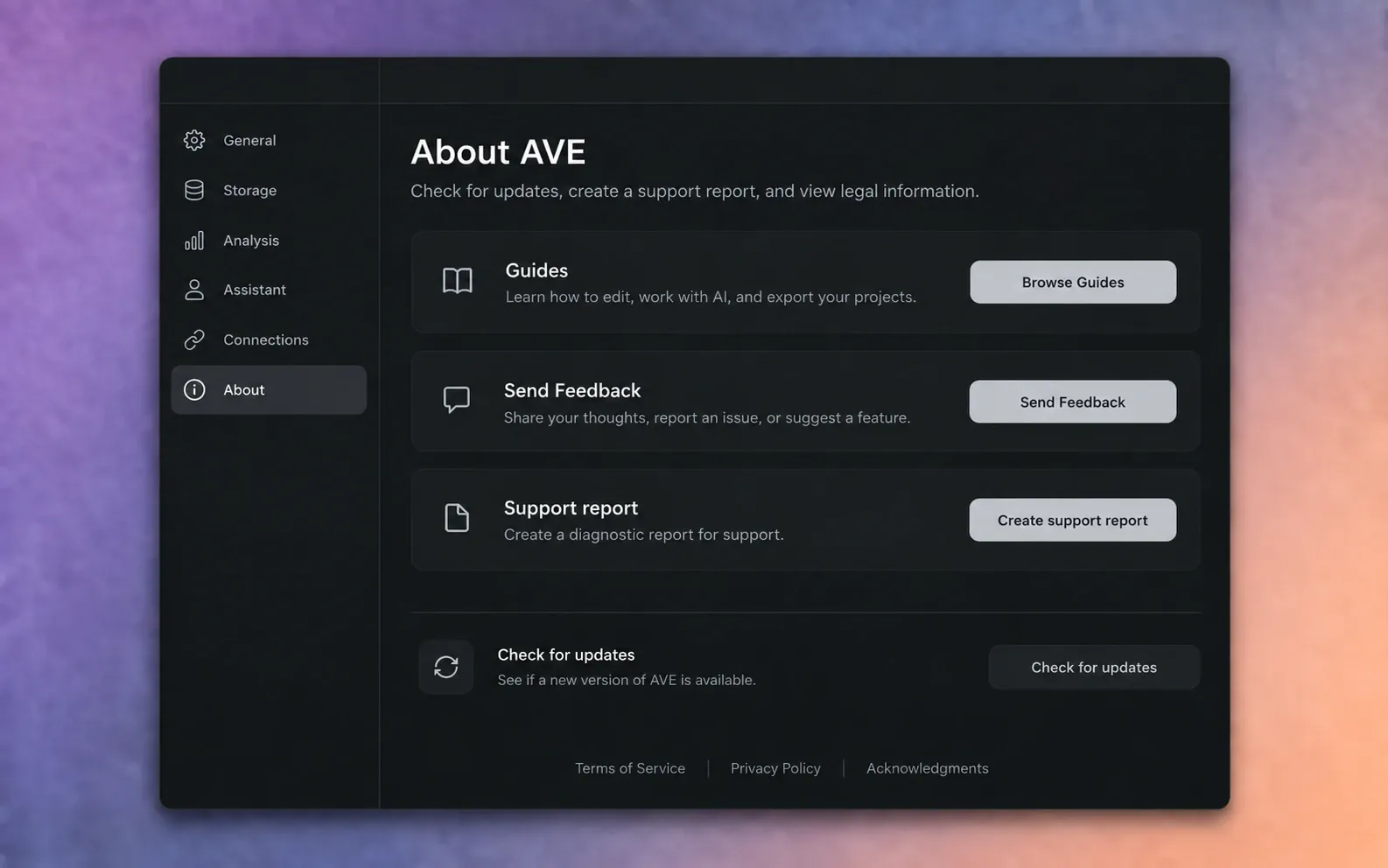
- Open Settings > About and choose Create support report. Analysis setup screens can also offer this action when a local component fails.
- Include your AVE version, Mac model, macOS version, failing assistant or model, and the steps that reproduce the problem.
- Send the report to support@tinythings.app.
Protect client material. Do not attach private source footage unless it is necessary, you have permission, and you understand what you are sending. Start with the support report and a short description.