How to edit video by editing the transcript on Mac.
Transcribe a spoken recording locally, select the words you want to keep or remove, review speech cleanup, add captions, and export from AVE.
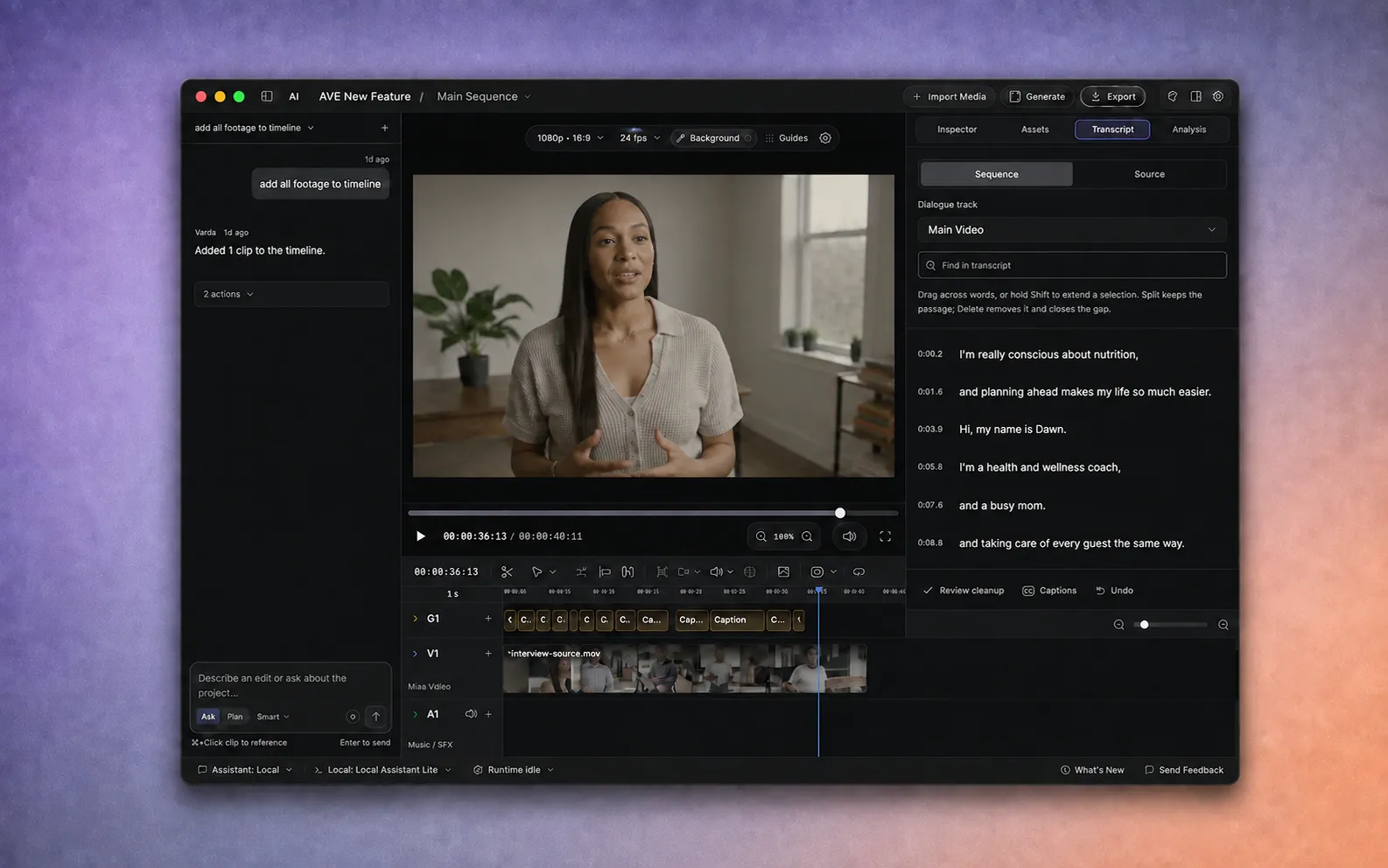
Start with a spoken recording.
Transcript editing is useful when the structure of a video lives in what someone said: an interview, podcast, tutorial, presentation, customer story, or talking-head recording. Instead of finding every sentence by scrubbing the timeline, you work from timed words that remain connected to the footage.
- Install AVE 1.2.15 on an Apple Silicon Mac.
- Create or open a project, then choose Import Media to add an audio or video recording. You can also use spoken footage already in your project.
- Transcript editing is a Pro feature. Start the seven-day trial if needed. No card is required and the trial does not renew automatically.
Your recording stays local by default. AVE can transcribe, edit, preview, and export on your Mac. You do not need to upload the recording or connect an external assistant for this workflow.
Create the transcript on your Mac.
Open Transcript in the right panel. If the recording does not have timed words yet, choose the local transcription action and let AVE finish analysing the speech.
The transcript is an editing surface, not a separate copy of the script. Each word or segment points back to a range in the source media. Selecting text therefore gives AVE exact timing for previews and timeline changes.
If an older project appears to be missing words, analyse that recording again. AVE 1.2.0 corrected a caption-completeness issue, but projects analysed by an older version keep their existing transcript until you refresh it.
Choose Source or Sequence.
The switch at the top of the Transcript panel changes what you are reading:
- Source shows the original recording. Use it to inspect the full take and turn a useful excerpt into a separate sequence.
- Sequence follows the clips on the selected dialogue track. Use it when you want Split or Delete to change the current edit.
Choose the intended Dialogue track before editing. If your project has several video or dialogue tracks, this keeps the transcript connected to the sequence you actually want to change.
Select the words you want to edit.
- Use Find in transcript when you remember a phrase but not where it appears.
- Drag across adjacent words. Hold Shift to extend the current selection.
- Choose Preview and listen through the selection before changing the sequence.
Include enough context to hear the breath and sentence boundary around a cut. A grammatically clean text selection can still sound abrupt when the speaker is mid-breath or the room tone changes.
If only segment-level timing is available, AVE selects that larger segment instead of pretending it knows exact word boundaries.
Split around a passage or remove it.
Split cuts at the edges of the selection while keeping the selected passage in the sequence. Use it when you want to isolate a sentence before moving, grading, or refining it.
Delete removes the selected passage from the sequence and closes the gap. The source recording remains unchanged on disk, so you can return to Source or undo the timeline edit if you removed too much.
Create sequence turns a useful excerpt into a separate sequence. This is useful for pulling one answer, quote, or social cut from a longer recording without changing the original sequence.
Locked tracks or unsupported overlapping layers can block a transcript edit. AVE stops in those cases instead of applying a cut that could leave the sequence out of sync.
Review pauses and filler words together.
Choose Review cleanup to find possible speech edits before applying them. AVE can surface long pauses and timed filler words such as “um” and “uh.”
- Set the minimum pause length. Lower it to see shorter gaps; raise it to keep more natural breathing room.
- Preview each suggestion in context.
- Select only the suggestions that improve the delivery.
- Apply the selected cuts together as one undoable edit.
Nothing is removed merely because AVE found it. If the review is empty, the track may contain no eligible pauses at the chosen threshold or no filler words with usable word timing.
Add captions after the spoken edit.
Choose Captions from the Transcript panel when the dialogue cut is settled. AVE keeps generated caption timing aligned when clips are split, trimmed, or retimed, but captions are still part of the edit: play them through and correct any wording or line breaks that need attention.
Doing the dialogue pass first avoids spending time polishing captions for sentences you later remove.
Watch the joins, then export.
- Play through every transcript-driven cut in the viewer.
- Listen for clipped consonants, missing breaths, repeated room tone, or jumps that need a slightly wider edit.
- Use Undo or refine the clip edges on the timeline where necessary.
- Choose Export, check the active sequence and preflight warnings, then render the finished video locally.
Transcript editing gives you a faster first dialogue cut. The timeline remains available for the visual rhythm, audio polish, captions, and finishing decisions that still benefit from watching and listening.
For a wider tour of projects, Ask, Plan, and manual timeline tools, continue with the complete getting-started guide. For the privacy boundary, read how AVE keeps editing local.