How to connect AVE MCP to Codex or Claude Code.
Connect Codex CLI or Claude Code to AVE’s authenticated local MCP bridge, choose planning and approval settings, and review all ten access scopes.
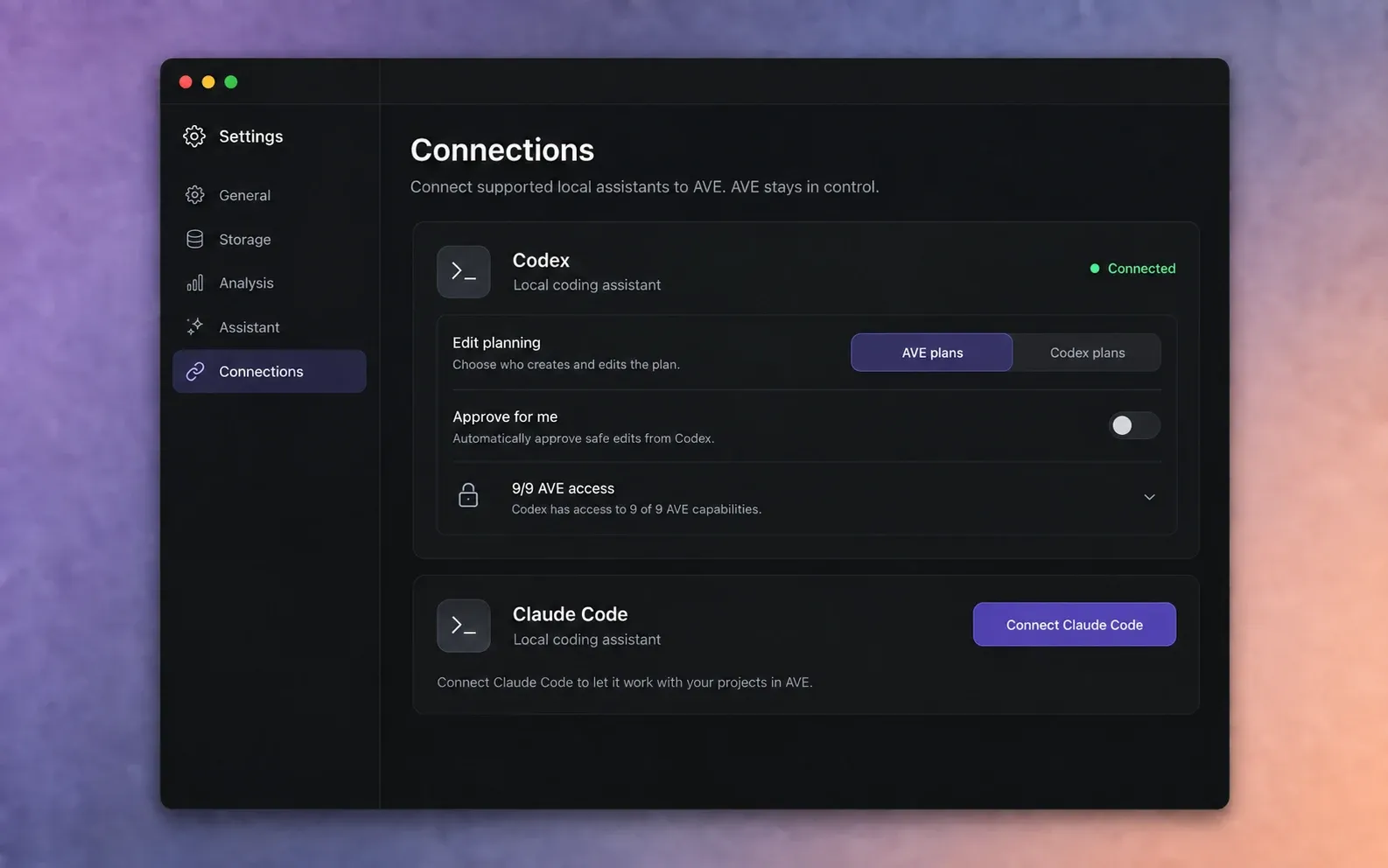
Know what the MCP connection does.
AVE MCP lets a supported local assistant inspect AVE projects and request editing work through an authenticated same-Mac bridge. You write in the assistant you already use, while AVE supplies structured project context, review frames, permissions, and editor actions.
AVE 1.2.2 supports Codex CLI and Claude Code as external MCP clients. Qwen CLI can be used as an assistant inside AVE, but it is not currently an external AVE MCP client.
Source footage does not pass through MCP. AVE provides structured project information and requested review evidence. The selected assistant still follows its own provider, account, and data-handling terms.
Install the client you want to connect.
- Install Codex CLI or Claude Code using that product’s official instructions.
- Open it once in Terminal and complete its normal sign-in.
- Confirm that the client can accept a basic request before connecting AVE.
- Keep AVE installed in Applications and open it at least once.
AVE detects supported local installations. If a client is missing from Connections, confirm that it runs under the same macOS user and restart AVE after installation.
Connect the client from AVE.
- Open AVE and choose Settings.
- Select Connections.
- Find Codex or Claude Code under Supported assistants.
- Choose Connect Codex or Connect Claude Code.
- Wait for AVE to confirm that the client was configured.
AVE performs the normal one-time configuration for you. You do not need to copy credentials into a prompt or expose a public MCP endpoint.
Restart the client once.
After AVE configures the connection, fully quit and reopen Codex or Claude Code. The client loads its MCP configuration at startup.
- End the current client session.
- Start a new Codex or Claude Code session.
- Return to Settings > Connections in AVE.
- Confirm that the client shows Connected.
If AVE shows Waiting for assistant, the setup exists but the restarted client has not completed the local connection yet.
Choose who plans MCP edits.
Each connected client has its own edit-planning setting.
- AVE plans sends the editing brief through AVE’s normal planning path before execution.
- Codex plans or Claude Code plans lets that client create the MCP workflow directly from the available AVE tools.
Start with AVE plans if you want the same planning behavior you use in the AVE composer. Use client planning when you want the connected assistant to reason across a broader task and call AVE tools directly.
Review access and approvals.
Expand the access section for the client. AVE 1.2.11 exposes ten permission scopes, and each client has its own choices:
- Prepare screen recordings
- Discover projects
- Read projects
- Review rendered frames
- Import media
- Create projects
- Propose timeline edits
- Apply timeline edits
- Manage Footage Memory
- Export videos
Preparing a recording opens setup for your review. Only you can choose inputs, grant capture permissions, and start recording in AVE.
Disable any scope the client does not need. A read and review workflow does not need permission to apply edits or export.
Approve for me automatically approves eligible safe edits from that client. Leave it off while learning the workflow so you can inspect requested changes before AVE applies them.
Test the connection with a read-only request.
Open an AVE project, then send this from the connected client:
Use AVE to list my open project, its sequences, and the analyzed media available for editing. Do not change the project.
If the response names the correct project, follow with a footage search or a small planned edit. Keep AVE open so you can review requests, approval dialogs, jobs, and the resulting timeline.
Continue with the first CLI edit guide when the read-only check works.
If the MCP connection does not complete.
The client is installed but AVE cannot connect it
Confirm that the client runs and is signed in under the same macOS user. Restart AVE, return to Connections, and retry the connection.
AVE says restart required or waiting for assistant
Fully quit the client and start a new session. Opening another prompt inside an existing process may not reload the new MCP configuration.
The client can read but cannot edit
Expand its access settings and confirm that Propose timeline edits and, when needed, Apply timeline edits are enabled. Keep approval on manual review until the workflow is familiar.
Use the full troubleshooting guide for exact connection states. If setup still fails, send the client name, AVE version, displayed recovery message, and support report to support@tinythings.app.