How to make your first AVE edit from a CLI assistant.
Start with analyzed footage, ask for a small reviewable cut from AVE or a connected client, inspect the proposed work, and refine the real timeline.
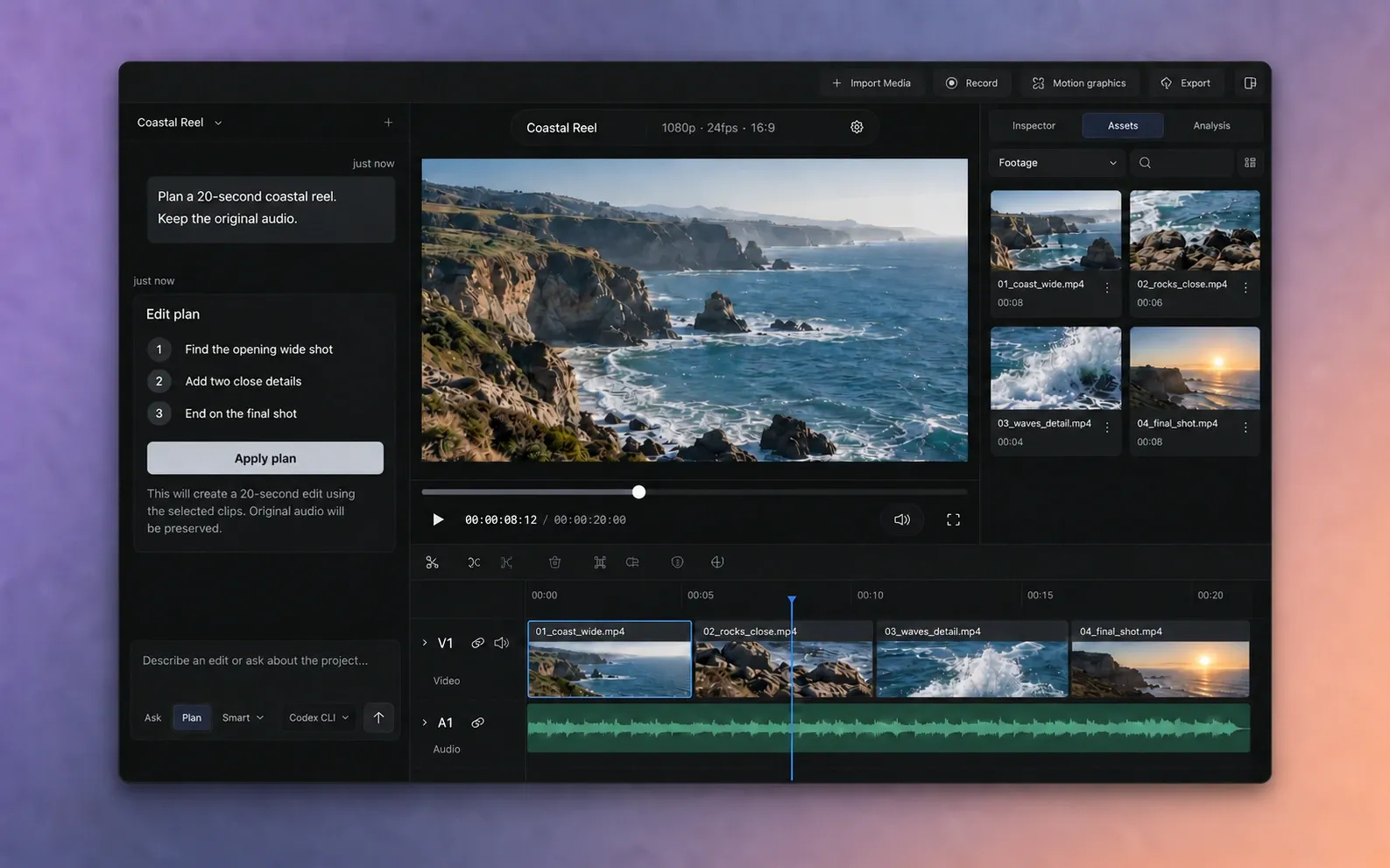
Choose where to send the request.
You can begin a CLI-assisted edit in two ways:
- Inside AVE: choose Codex CLI, Claude CLI, or Qwen CLI in Settings > Assistant, then write in AVE’s composer.
- From an external client: connect Codex CLI or Claude Code in Settings > Connections, then write in that client.
Both paths use AVE’s project context and supported editor operations. External MCP adds per-client access scopes and approval controls.
Prepare a small, understandable project.
- Open the exact AVE project you want to edit.
- Confirm that its source media is online.
- Analyze the relevant footage for visual content, speech, or both.
- Create or select the target sequence.
- Use a short first deliverable, such as a 15 to 30 second rough cut.
If the assistant needs analysis that is missing, AVE can ask you to run it. Complete the analysis, then review the updated plan instead of approving the old one.
Write a useful first brief.
A good brief names the source, desired duration, structure, output shape, and anything that must remain unchanged.
In my open AVE project, plan a 20-second horizontal rough cut from the analyzed footage. Start with the strongest wide establishing shot, use two close details, and end on the cleanest final shot. Keep the original audio. Do not generate media or export yet. Show me the plan before applying it.
Replace these shot descriptions with details that exist in your footage. If you know a spoken phrase, subject, location, or action, include it. Avoid asking for a complete campaign before the first connection test works.
Review the proposed work.
- Check that the assistant selected the correct AVE project and sequence.
- Preview the source moments it intends to use.
- Read the proposed timeline actions and their order.
- Resolve any requested analysis or clarification.
- Revise the brief if the sources or structure are wrong.
If the sequence changes after a plan is prepared, refresh or rebuild the plan before approval. AVE protects against applying work to stale project state.
Apply and inspect the edit.
Approve the plan or workflow only when the sources, target, and actions are correct. Keep AVE open while it executes.
- Wait for the editing job to complete or request attention.
- Play the sequence from the beginning.
- Check every cut, the opening and ending, audio continuity, and framing.
- Confirm that the timeline remains editable and that no unrelated sequence changed.
Review the picture and sound, not only the assistant’s completion message. A completed tool call does not prove that the creative result is right.
Refine one thing at a time.
After the rough cut works, ask for one concrete change with a clear boundary.
Shorten the second clip by one second and keep every other clip, audio level, and sequence setting unchanged.
Inside AVE, use ⌘ + click on a timeline clip to reference it in the composer. From MCP, ask the client to inspect the current project state before changing an older plan.
Export or continue editing.
When the timeline is ready, export a local video file from AVE or create an FCPXML handoff for Final Cut Pro. If an external client has Export access, it can request the export through AVE, but you should still open the finished file and check picture, sound, duration, and format.
Use the Final Cut Pro guide for an editable handoff and compatibility review.
If the first edit does not work.
The assistant cannot find the footage
Confirm that the source is imported, online, and analyzed. Start with a read-only search and preview the returned moments before requesting an edit.
The wrong project or sequence is selected
Name the project and sequence explicitly. Ask the assistant to list them before making changes. Keep only the intended AVE project open during your first test.
The plan is blocked after the project changed
Refresh the AVE project state and prepare the plan again. Do not try to force an older approval onto a changed timeline.
The result is technically complete but creatively wrong
Make the brief smaller, name the exact problem, and state what must stay unchanged. Preview source ranges and use a manual timeline correction when it is faster.
For setup and status errors, use the analysis and assistant troubleshooting guide. Send repeatable errors and a support report to support@tinythings.app.