How to create motion graphics with AI in AVE.
Turn a brief into an animated video, title, or overlay. Review the preview, customize it, choose a track, and export locally on your Mac.
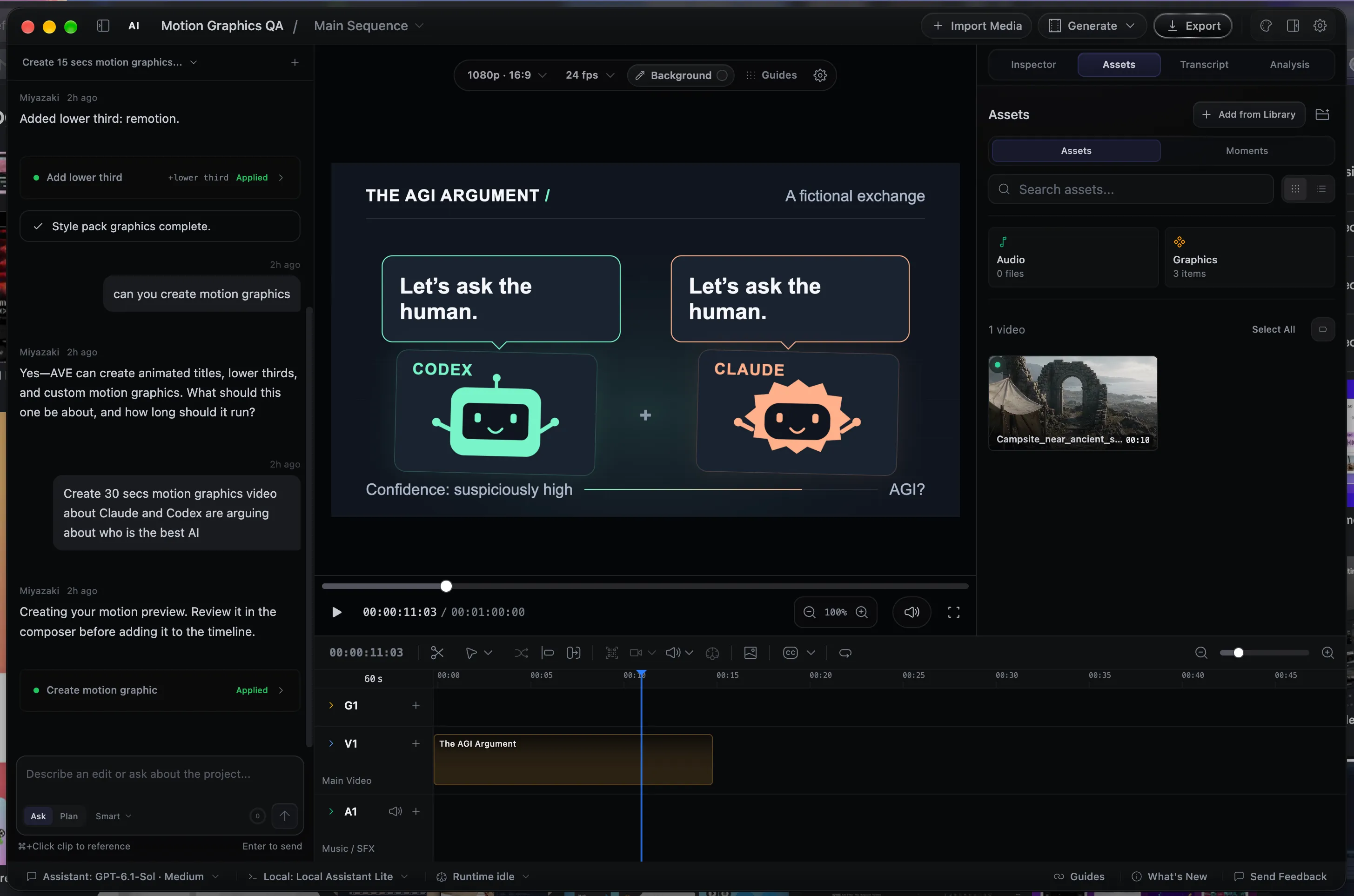
Prepare your project and assistant.
Install AVE 1.2.6 and open a saved project. You can create an animation in an empty project or add a title or overlay to footage you already have. Set the sequence aspect ratio, resolution, and frame rate before generating: the motion preview uses that canvas.
AVE uses your configured assistant to create the composition. Choose a local model, a supported installed Codex, Claude, or Qwen CLI, or your API provider. You do not need a separate motion-rendering account, service, or API key.
Your assistant still needs its own setup. Local models can work on-device once ready. An external CLI or API provider retains its own sign-in, subscription, or API requirements. See the installed CLI guide if you use one. Stronger coding assistants generally handle more ambitious briefs; a small local model may work better with a simpler, shorter composition.
Open the motion composer.
- Choose Motion graphics in the editor header. It is separate from Video & images.
- You can also choose Create Motion Graphics in the edit suggestions, or use the Create motion graphics banner on Home with a project selected.
- Describe your idea in the floating Create with AI composer. Leave Default assistant selected, or choose another configured assistant for this creation.
The in-app Assistant can open the same composer from a motion-creation request. The preview is a review step: it is not added to the timeline until you choose to add it.
Give the assistant a clear creative brief.
Include the purpose, exact words, visual style, colors, duration, and entrance or exit behavior that matter to your edit. Say whether you want a full video or a transparent overlay. A short brief can be enough, but those details make the result easier to judge.
Create a 5-second documentary lower third for MAYA CHEN, Marine biologist. Warm white text, an ocean-blue accent, and a transparent background. Bring the name in first, then the role. Keep both readable and exit gently.
Create a 15-second animated chapter opener called THE NEXT CHAPTER. Use bold warm-white typography on a charcoal background with a restrained green underline. Build through three short scenes and finish with a clean title hold.
- Leave Duration: Auto to let your brief guide the length, or choose a duration from the menu. Compositions can run up to 60 seconds.
- Choose Create. AVE asks the selected assistant for the composition, then renders the preview on your Mac.
- Follow the progress message. Longer animations and larger canvases take more time and use more project storage. Choose Cancel if you want to stop and revise the brief.
This workflow creates animated graphics and typography. Add footage, music, or voiceover through the normal media and timeline tools; the motion composer does not automatically generate a soundtrack or spoken narration.
Watch it, refine it, and make it yours.
- Watch the complete preview. Pause or scrub to check entrances, readability, spacing, and exits.
- Open Customize to change the text, colors, or other properties exposed by the composition. The available fields depend on what the assistant created.
- Choose Update preview after changing a property or duration. AVE needs a new preview before the updated result can reach the timeline.
- For a broader change, enter a refinement such as Make the name larger, soften the entrance, and hold the final title for two seconds, then choose Refine.
You keep control of the result. Check spelling, names, meaning, timing, and legibility on your video before accepting it. If an exposed field is missing, ask the assistant to make that part customizable in a refinement.
Choose the right timeline track.
AVE suggests a destination based on the composition. A full motion video defaults to Video; a lower third or transparent overlay defaults to Graphics. Check Place on and change it when your edit needs a different destination.
- Move the playhead to the intended start time.
- Choose Video or Graphics under Place on.
- Choose Add to timeline. AVE creates an editable motion asset and places its clip at the playhead.
- Trim, move, or reuse the clip as needed. Generated motion supports both video and graphics tracks.
Select the motion clip and choose Edit motion in its Inspector to reopen the composer. Review the new preview, then choose Apply changes.
Keep the complete project folder. The composition and its rendered frames are saved with the project. Keep those files together when moving or backing up an edit.
Export through the normal video flow.
- Play the timeline and check the motion over your actual footage or sequence background.
- Choose Export in the header.
- Choose a supported video format, resolution, frame rate, and the entire sequence or a custom range.
- Export locally, then open the saved video and review it.
MP4 is a practical choice for a finished video. Transparent motion overlays are composited over the footage or sequence background in your edit; the current video export produces the finished sequence rather than a separate transparent animation. It does not require a separate rendering service.
The editable composition belongs to AVE. For another editor, export the animation as video and import that file. Do not assume the editable motion source transfers through FCPXML.
Resolve common creation problems.
The assistant is unavailable
Check the selected assistant in Settings. Confirm a local model is ready, an installed CLI is available and authenticated, or your API provider has valid access. Changing the composer selection does not install or sign in to a provider.
The model menu looks old
AVE discovers supported models from the installed CLI. Update that CLI and reopen its model selector. You usually do not need to reconnect an already authenticated assistant.
The composition fails to create
Read the error shown in the composer. Try a shorter, focused brief or a stronger configured assistant if the selected model cannot produce a valid composition. Keep the exact wording and error for a reproducible report.
Rendering takes a long time
A long, high-resolution animation creates many frames. Start with a short composition and a canvas suited to the final delivery. You can cancel before retrying. Preview and export rendering use your Mac.
The title has an opaque background
Ask for a transparent overlay in the brief or refinement. Placing a clip on a graphics track does not remove a background the assistant deliberately drew.
Export says media is missing
Use AVE 1.2.6, keep the full project folder and rendered frames together, and reopen the motion clip with Edit motion to update its preview if needed. For a repeatable failure, send the AVE version, macOS details, brief, and error to support@tinythings.app.