How to create a selects sequence from multiple recordings.
Use AVE Batch Selects to review quality issues, shot boundaries, movement, and quiet sections across multiple recordings before creating a new sequence.
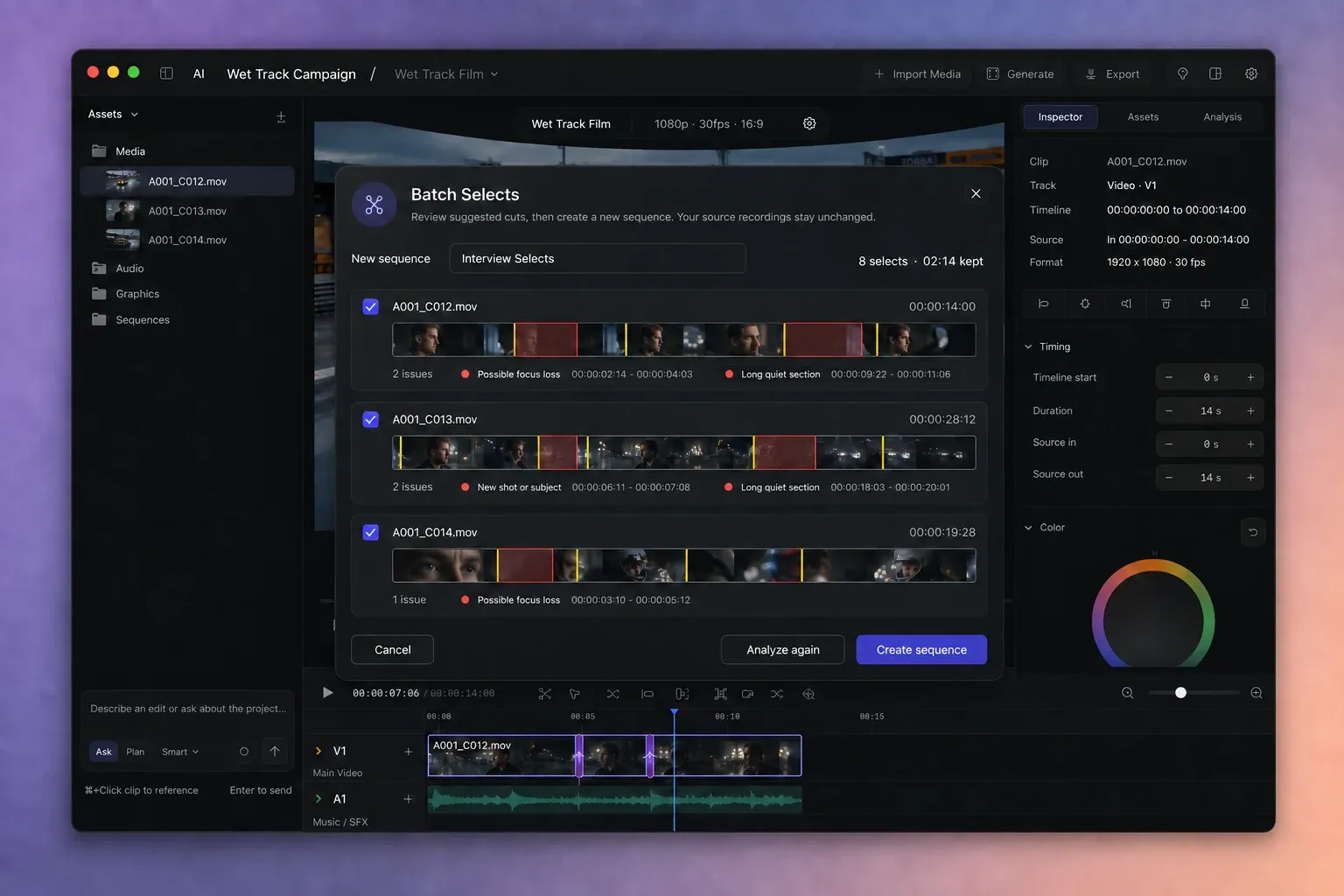
Understand what Batch Selects does.
Batch Selects helps you review a group of source recordings before assembling the edit. AVE inspects each selected video independently for dark or blown-out frames, possible focus loss, abrupt camera movement, long quiet sections, and new shots or subjects.
It proposes removals and split points. You decide which recordings and suggestions belong in the result, then AVE creates a separate sequence from the ranges you kept.
This is source review, not automatic storytelling. Batch Selects does not grade footage, choose the most compelling performance, build a narrative, or clean the active timeline. Existing sequences and source files stay unchanged.
Prepare the recordings.
- Open a saved AVE project and import the recordings you want to review.
- Keep the batch between 1 and 50 imported video assets. Audio files, images, graphics, and missing files cannot enter Batch Selects.
- Analyze recordings that do not yet have enough visual evidence. AVE prompts you when more analysis is required.
- Use folders or Smart Rename first when clearer asset names will make a large review easier to follow.
Start with recordings from the same shoot or editorial stage. Batch Selects keeps sources separate, but a focused batch is easier to inspect than an unrelated mix of interviews, B-roll, and finished exports.
Select the sources.
- Open Assets in the editor.
- Select one video, or select multiple videos from the current folder or project.
- Choose Selects from the floating action bar.
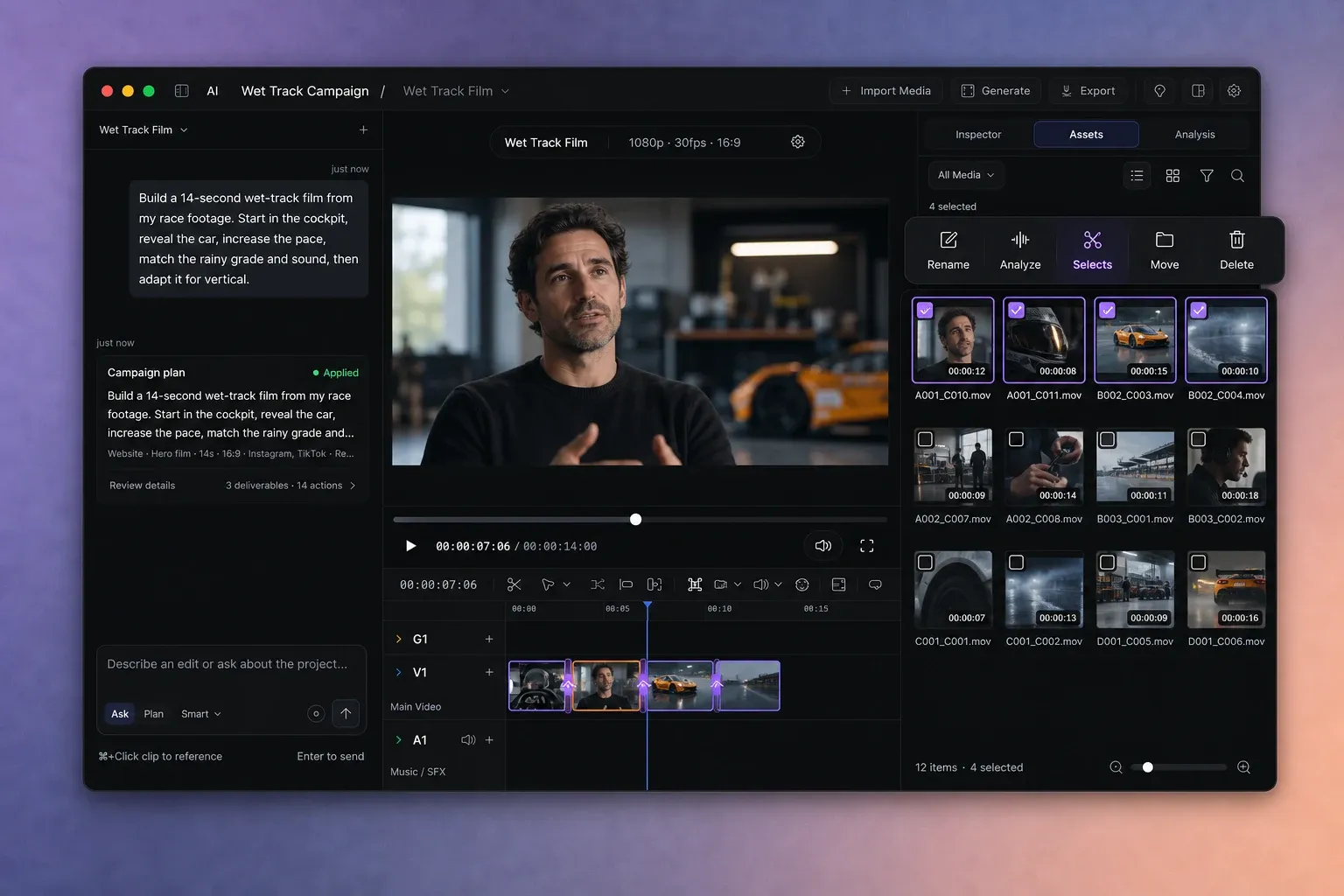
AVE begins inspecting the selected recordings. You can cancel while analysis is running. Finish or cancel any active timeline edit before opening a Batch Selects review.
Read the suggestions source by source.
Each recording has its own review card, duration, timeline strip, and issue list. Selected red ranges are proposed removals. Yellow markers are proposed split points that keep both sides as separate selects.
- Dark or blank frames and blown-out frames are selected for removal when the visual evidence is clear.
- Possible focus loss and abrupt camera movement stay available for judgment because softness or movement may be intentional.
- New shot or subject creates a split suggestion rather than removing footage.
- Long pauses can be suggested when a transcript supports the speech boundary. Without a transcript, quiet sections remain cautious review items.
If AVE cannot sample enough evidence, or if most of a recording is flagged, it leaves the decision to you instead of making an aggressive automatic cut.
Adjust the review before accepting.
- Choose Preview beside an issue to watch a short range around it.
- Turn individual remove or split suggestions on or off.
- Exclude a complete recording when it does not belong in this selects sequence.
- Edit the sequence name shown at the top of the review.
- Use Analyze again when the evidence or imported sources need a fresh pass.
The count and kept duration update with your choices. Treat them as a summary of the proposed sequence, not a quality score.
Create the selects sequence.
Choose Create sequence when the included recordings and suggestions look right. AVE assembles the kept source ranges into a new sequence and leaves the original recordings and existing timelines intact.
Open the new sequence and play every boundary. A source-analysis pass can remove obvious unusable material, but pacing, performance, meaning, and story still need editorial judgment. Refine the sequence by hand or use Ask and Plan for the next bounded editing task.
Open the same review from the Assistant or MCP.
You can ask AVE to open Batch Selects for the selected recordings, current Assets folder, or project. Keep the request focused on source review:
Review these recordings with Batch Selects before I build the cut.
A connected Codex CLI or Claude Code assistant can call ave_review_batch_selects for 1 to 50 exact imported video asset IDs. The tool returns review_opened, not a completed edit. Review and accept or cancel inside AVE, then let the assistant read the timeline again.
Do not combine Batch Selects with a rough cut or timeline cleanup in the same request. Finish the source review first, then describe the edit you want to build from the resulting sequence.
Fix common Batch Selects problems.
AVE asks you to analyze a recording
The video does not yet have enough local evidence for a safe review. Run Analyze on that asset, then start Batch Selects again.
Selects is unavailable
Confirm that the selected assets are imported videos, the project is saved, no other Batch Selects review is open, and no timeline edit is currently being applied.
A suggestion does not match your intent
Preview the range and turn that suggestion off. Possible focus loss, camera movement, and silence can be deliberate editorial choices.
Most of a recording is flagged
AVE disables aggressive defaults when most of a source looks problematic. Review it manually, exclude it, or analyze a cleaner source copy.
The created sequence still needs editing
That is expected. Batch Selects prepares usable source ranges; it does not choose performances or build the story. Continue on the new timeline manually, with the Assistant, or through a connected MCP client. For a reproducible failure, send your AVE version, macOS details, and the exact steps to support@tinythings.app.